How to use Grabify
without feeling lost
This page explains the core workflow in plain, easy English. If you are new to Grabify, start here. You will learn what the link does, what the code is for, and what the result page usually shows.
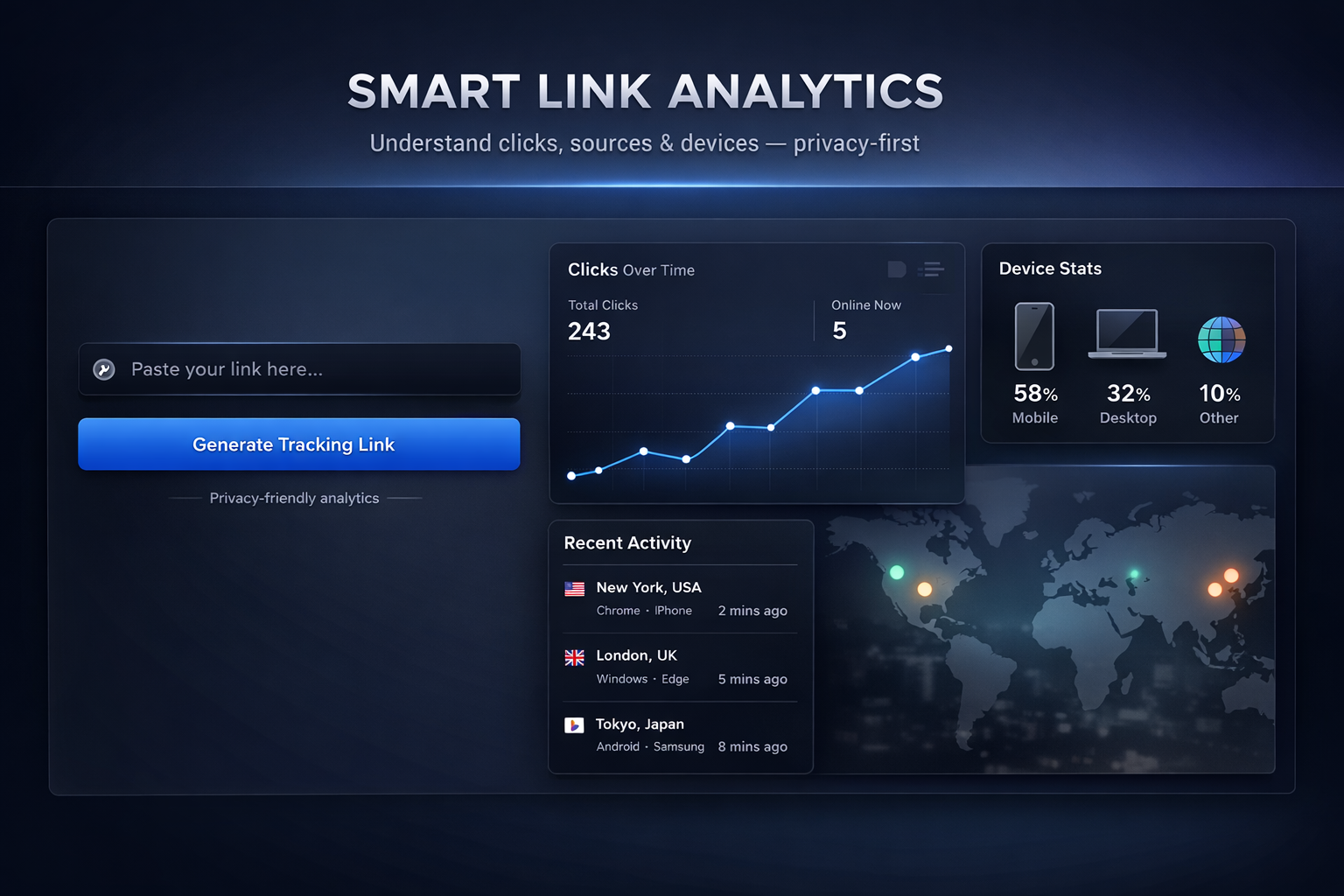
Original URL in → tracking link out → click log on the results page.
What Grabify does
Grabify is a link tracking tool. You enter a destination URL, create a tracking link, and then check what happened after someone clicked it. The result page normally shows the visit time, IP-related data, browser details, and some device information.
The simple workflow
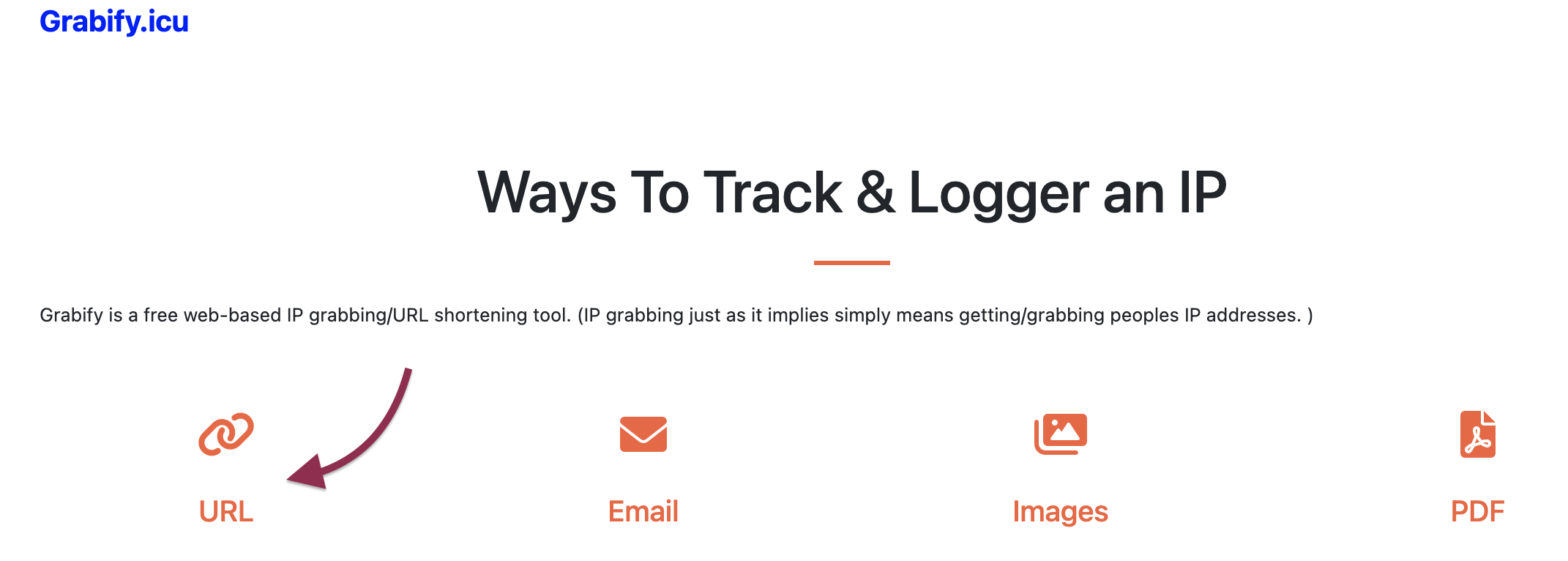
You do not need to memorize a lot. Most people only need these four steps.
Choose the destination page
Pick the real page you want people to open. It can be a website, article, product page, or landing page.
Create the tracking link
Paste the original URL into Grabify. The tool will generate a new short link. That short link is the one you share.
Save the code or access link
Grabify gives you a code and, in many cases, a direct access link. Save them immediately. You will need them to open the log page later.
Open the log page
After the click happens, go back to the result page. That page is where you review the traffic details.
What the result page usually shows
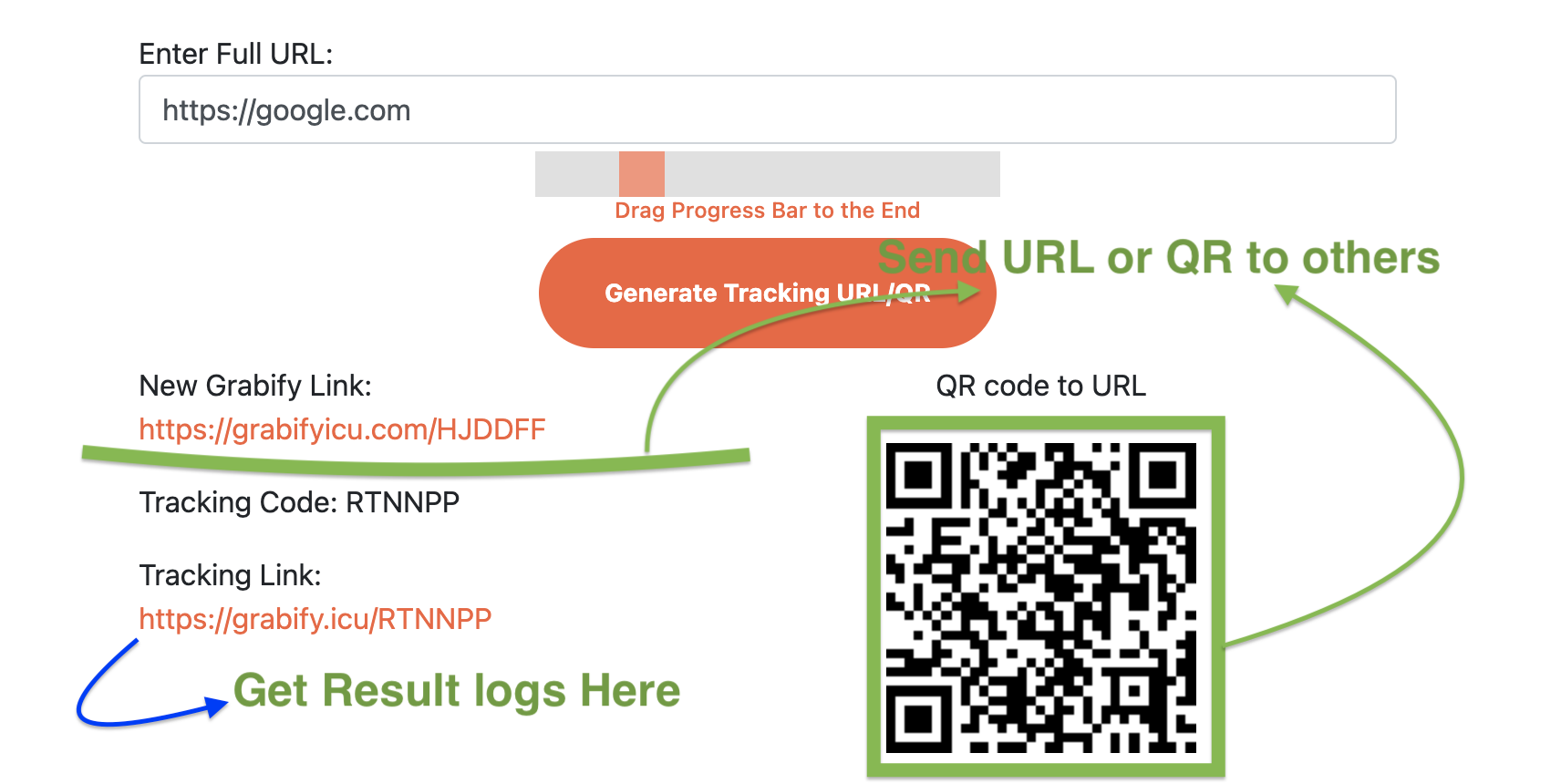
Different visitors and browsers can expose different amounts of data, but the common fields are easy to understand.
IP and location
You may see an IP address and an approximate geographic location.
Device and browser
The log may include browser type, operating system, and device category.
Visit timing
You can usually see when the click happened and how many clicks were recorded.
Email and image tracking
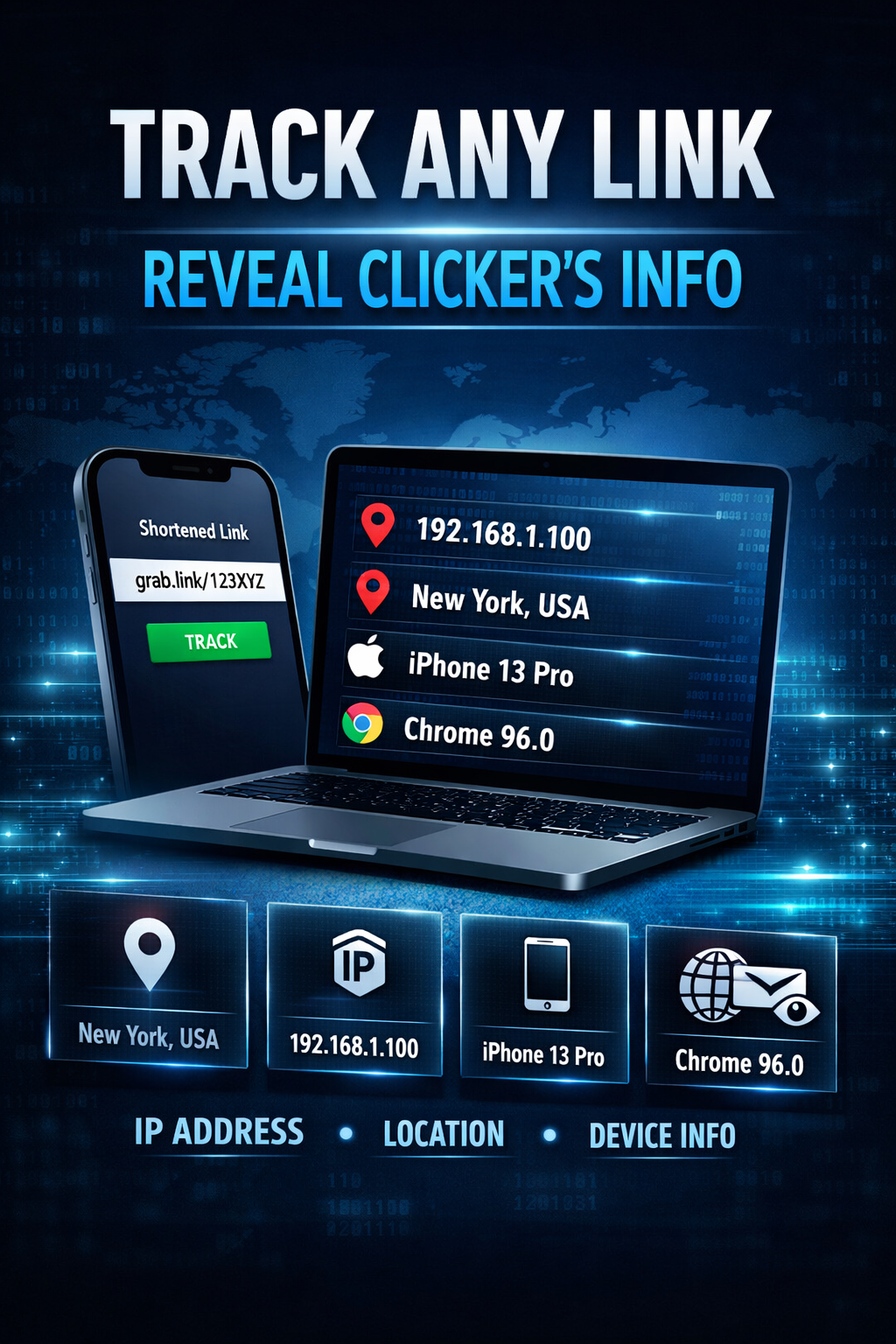
Some setups use a small image or tracking pixel instead of a visible link. This is common in email tracking and simple activity checks.
Why people use this
- To check whether an email was opened
- To understand click activity from a campaign
- To compare desktop and mobile response behavior
Keep this in mind
- Save your tracking code as soon as you create the link.
- Test your setup before sharing it more widely.
- Check the page on both desktop and mobile.
- Keep your links organized if you manage more than one campaign.